The Instagram video downloader on SaveInsta saves public feed videos as MP4 files. Paste the post link, press download and keep the video on your phone or computer. You do not need to log in or install the saveinsta app.
Not every clip on Instagram is a Reel. Many are normal videos posted to the feed, sometimes a few minutes long. This page is for those posts. It explains the steps, the quality you can expect, how to save on each device and how to fix common problems.
How to download Instagram video
The method is the same on a phone and on a computer.
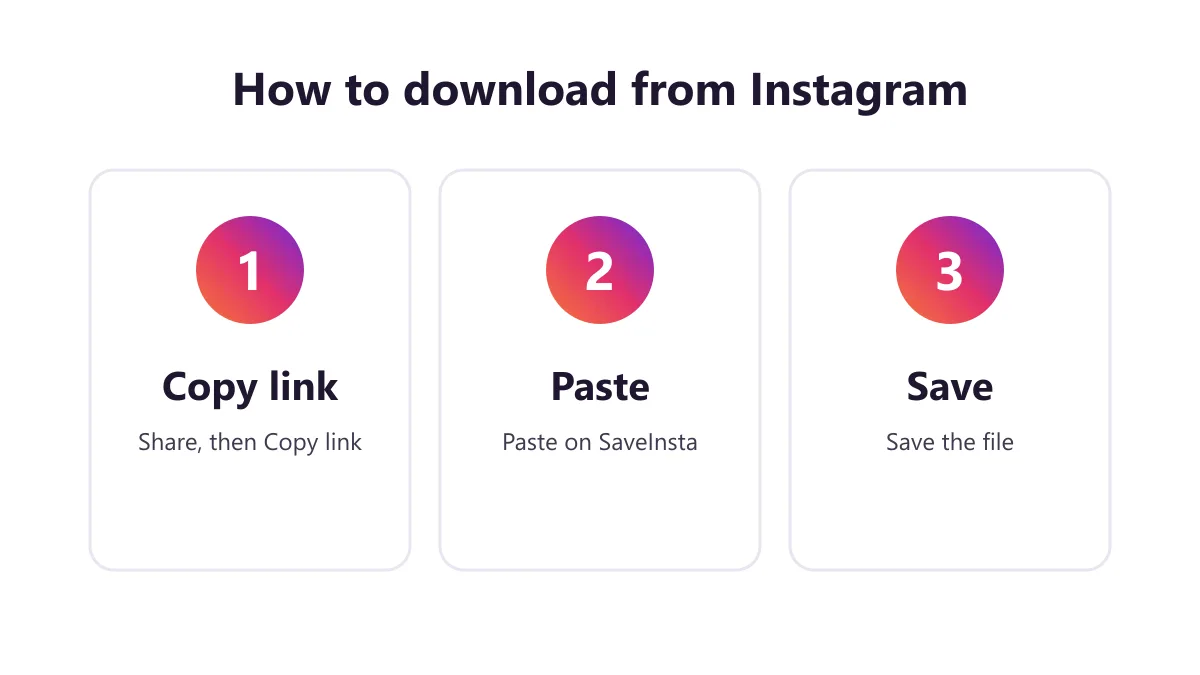
1. Copy the post link
Open the video post in Instagram. Tap the three dots above the post or the Share icon and choose Copy link. On a computer, open the post in your browser and copy the address. Check that it is a link to one post, not to a whole profile.
2. Paste the link into SaveInsta
Open SaveInsta and paste the link into the field. Press the download button. The tool looks for the public video and prepares the file. Wait a few seconds. Longer videos may need more time.
3. Save the MP4 file
Tap the download button next to the preview. The video is saved to your device, usually as MP4. Open it from your Downloads folder or the Files app. To get another video, paste a new link and repeat. This insta video download works one link at a time.
Video types and quality
Instagram stores videos in different sizes. SaveInsta gives you the best quality available for the public post, usually up to 1080p. We do not promise 4K, and we do not promise a fixed bitrate. If the creator uploaded a small or compressed file, you get that same quality.
| Video type | Saved as | Notes |
|---|---|---|
| Feed video | MP4 | Usually up to 1080p |
| Long video | MP4 | Larger file, may load slower |
| Reel shown in feed | MP4 | See the Reels page too |
| Video with music | MP4 | May be silent if no audio track is given |
| Video in a carousel | MP4 per item | Save each item separately |
Some features may fail depending on the post. If a video has no sound on Instagram, or if Instagram gives no audio track, the saved file can be silent. No watermark is added by SaveInsta, although text added by the creator stays in the picture. Photos and carousels work too: each item saves separately, and all photos can be saved together as a ZIP. Stories are not supported yet.
Saving video on Android, iPhone and PC
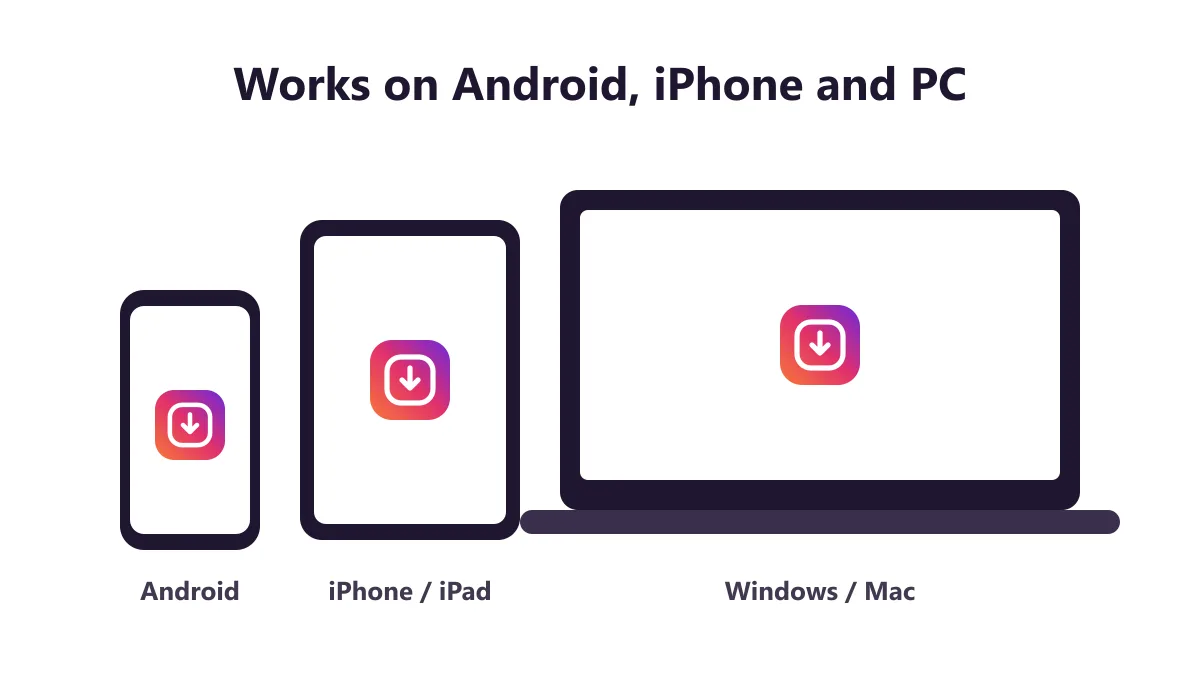
Android. Open this page in Chrome, paste the link and tap download. Choose Downloads if your phone asks. The video appears in Files and usually in the gallery.
iPhone. Use Safari. When the download finishes, open the Files app and find the video. Tap Share and then Save Video. The clip now sits in your Photos app. Other browsers may behave differently.
PC or laptop. Paste the link, click download and look in your Downloads folder. If the video plays in a new tab, right-click it and pick Save video as.
Video files can be large. A few minutes of footage may take a good amount of storage, so check the free space on your phone before you save several clips. Use Wi-Fi when you can, because mobile data may run out quickly. If a video is very long, give it extra time to load before you press download again.
Common uses
- Saving your own video posts before you change or delete them.
- Keeping a lesson, interview or product demo for offline viewing.
- Making a personal archive of a family video you posted.
- Sending a clip to a relative who is not on Instagram, with the owner’s permission.
- Reviewing footage for a school assignment or a work report.
- Keeping an event video posted by your own business or club.
Before you save, ask yourself if you have the right to keep it. Offline viewing for yourself is one thing. Uploading someone else’s video to another account is another.
Safety and respecting creators
SaveInsta does not ask for your Instagram password and does not need it. If any site asks you to log in to download, leave. The tool works only with public posts, and it does not store videos on its servers.
Stay away from pages that demand extra installs or flood you with pop-ups. Keep your device and browser updated.
Every video was made by someone. Give credit when you share, ask before you repost and never claim another person’s work as yours. Downloading is not always legal, because rules depend on the content and where you live. When in doubt, ask the owner.
Problems and fixes
- Link not accepted. Copy it again from the post. Use the post link, not the profile link.
- Video is private. Private accounts cannot be downloaded.
- Video was removed. If the owner deleted it, there is nothing to save.
- Download is slow. Long videos take more time. Wait, then refresh and try again.
- No sound. The post may not have audio on Instagram, so the file can be silent.
- File will not open. Try another player, or open it in a different browser.
- Phone storage is full. Free up some space or delete old clips, then try again.
- iPhone saves nothing. Use Safari and check the Files app.
Still stuck? Email [email protected] with the link and what happened.
More SaveInsta tools
If you want to save something other than a feed video, use one of these pages:
- The Instagram downloader home page covers every type of public content.
- The Instagram Reels downloader is made for short vertical Reels.
- The Instagram photo downloader saves photos and carousel images.
Each page uses the same simple steps. Come back to this Instagram video downloader whenever you have a new public video link.